
Why does my Instagram feed keep disconnecting from Squarespace — & how to fix!
The problem:
Let me guess… You’ve connected your Instagram feed to your Squarespace site and it’s synced up and automatically updating beautifully, feeding your posts into your website… until, one day it’s not.
What the heck!?
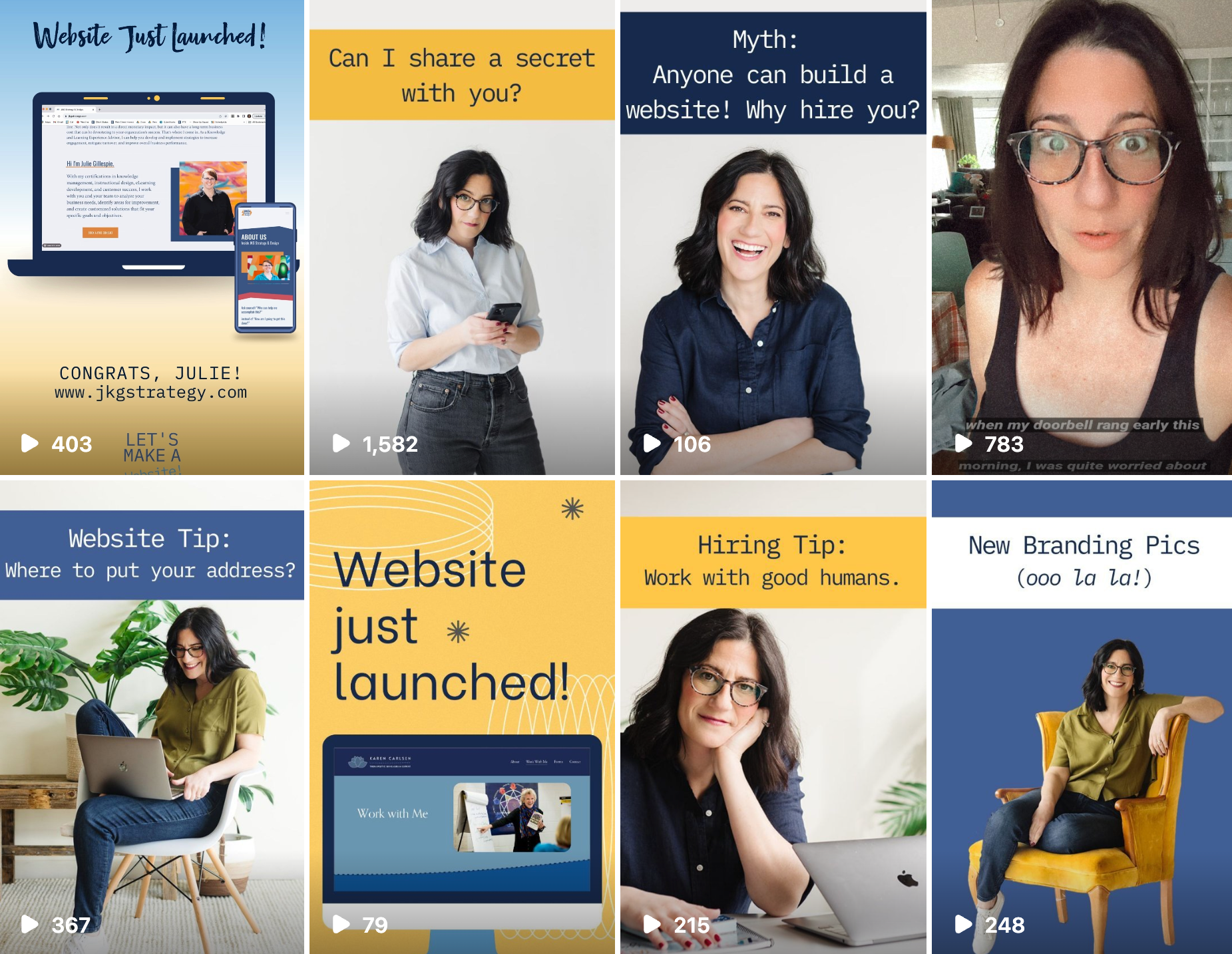
Why does my Instagram stop syncing?
This issue is common and is usually caused when Instagram issues an update to their code (API) on their end. This, in turn, causes external feed connections to stop working — not just on Squarespace, but anywhere across the internet where this API was being referenced! Sadly, we can't stop Instagram / Meta from changing their code. (Could you imagine?) But, fortunately the fix on our end to get it syncing again is super simple and only takes about a minute. And here is how to do it!
How to fix and re-sync your Instagram feed!
In order to fix your Instagram feed so it starts syncing again, you have to do what I call a “fake” edit to the connection. Here are the steps.
Open a browser and login to your Squarespace website.
Open a new browser tab and log into the Instagram account that you want feeding into your website.
Go back to Squarespace and click “EDIT” into the page (or footer section) where your Instagram block lives.
Double click into the Instagram block and click where it says “Connect an Account” — and select “add account.” (Yes, you are doing this even if your correct account is already in there!)
A pop-up is going to open - click okay and follow the prompts to allow Instagram and Squarespace to work together.
Save your page!
Refresh your page or open your live site in a new browser tab to review the changes.
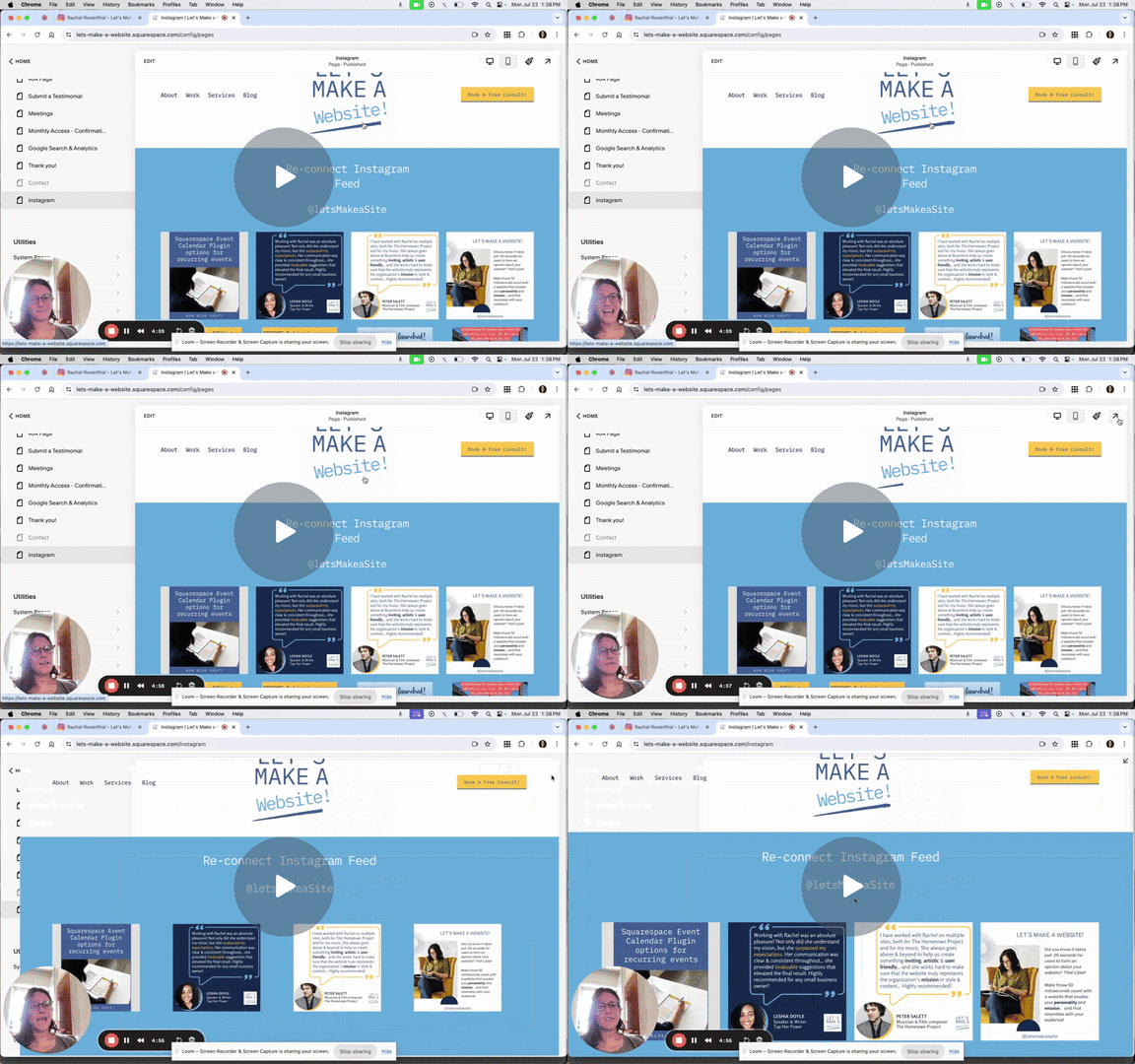
Watch Video:
Reconnect Instagram on Squarespace Site
Ack! New Problem! (updated March 26, 2025)
Come on, Meta! Can you make anything more complicated? I thought you wanted folks to USE your products!
Ok, there is a new issue appearing with a disconnected Instagram feed that just won’t re-sync to Squarespace. Perhaps you’ve run into it.
The problem:
You go to try to reconnect your account with my above instructions but when the Instagram account pop up window appears, you get the following error:
“OAuthException: Your account's future activity history off Meta technologies is currently turned off. Please visit account center to change it.”
Cool Cool Cool.
It seems there are a few ways around this:
Connect your account as a Business Profile, or
Make sure that your “Off-Meta Activity” is set to “Connect Future Activity.”
More directions on how to do this can be found here c/o smashbaloon.com.
We did it!
I have many more ideas for website tips and tricks but I would love to hear what YOU are curious about! Hit me up. :)

I help small businesses strategize and launch Squarespace websites that work for them!
View Website Services